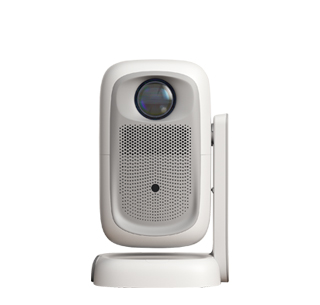
Projecting from a computer to a projector is a multi - step process that involves both physical connections and software configuration.
1. Connect the Devices
As mentioned earlier, start by connecting the computer to the projector using the appropriate cable. If your computer has an HDMI port and the projector has an HDMI input, use an HDMI cable. For computers with VGA or DisplayPort and projectors with HDMI inputs, use the relevant adapters. Connect the cable firmly to both the computer's video output port and the projector's input port. If you want to transmit audio through the projector, and your computer supports audio - over - video - cable (e.g., with HDMI), you don't need a separate audio cable. Otherwise, connect a 3.5mm audio cable from the computer's headphone or line - out jack to the projector's audio input.
2. Power On and Select Input
Power on the projector first. Let it warm up for a few seconds. Then, power on your computer. After the computer has fully booted, press the "Input" or "Source" button on the projector. Cycle through the available input sources until you select the one corresponding to the cable you used. For example, if you used an HDMI cable, select the appropriate HDMI input option (HDMI 1, HDMI 2, etc.).
3. Configure Display Settings on the Computer
On a Windows computer, you can access the projection options by holding down the Windows key and pressing the "P" key. This will bring up four options: "PC Screen Only," "Duplicate," "Extend," and "Second Screen Only." Choose the option that suits your needs. If you want to show the same content on both the computer screen and the projector, select "Duplicate." If you want to use the projector as a secondary display and be able to move windows between the two screens, select "Extend."
On a Mac, go to "System Preferences" and click on "Displays." Here, you can choose to mirror the display (equivalent to "Duplicate" on Windows) or use the "Arrangement" tab to set up an extended display. You can also quickly switch between mirroring and extended display modes by pressing Command + F1 keys simultaneously.
4. Adjust Resolution and Other Settings
To ensure the best - quality projection, it's important to adjust the resolution of your computer's display to match the native resolution of the projector. On a Windows computer, right - click on the desktop, select "Display settings." Under "Scale & layout," you can adjust the "Resolution" setting. On a Mac, in the "Displays" section of "System Preferences," you can select the appropriate resolution option. Additionally, you may need to adjust other settings such as brightness, contrast, and color saturation on the projector to optimize the image quality. You can access these settings through the projector's menu, which can usually be navigated using the projector's built - in buttons or a remote control (if available).
Read recommendations:
HW40 Home Cinema - HW Series Projector
Smart Projector Core Functions
3LCD Projector manufacturer











 Reviewed: