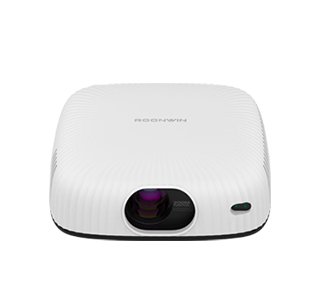
Video playback stuttering on a projector can be a frustrating problem that disrupts the viewing experience. There are several potential causes for this issue, and corresponding solutions can help resolve the stuttering and ensure smooth video playback.
One common cause of video stuttering is an insufficient data transfer rate. This can occur when the connection between the source device (such as a laptop, streaming device, or gaming console) and the projector is not stable or fast enough. If you are using a wired connection, such as an HDMI cable, check if the cable is damaged or loose. A faulty or low - quality cable may not be able to transmit the video data at the required speed, leading to stuttering. Replace the cable with a high - quality, high - speed HDMI cable to improve the data transfer. For wireless connections, such as screen mirroring or casting, ensure that the Wi - Fi network is strong and stable. Interference from other wireless devices or a weak signal can cause interruptions in the video stream. Try moving the source device and the projector closer to the Wi - Fi router, or switch to a less crowded wireless channel to reduce interference.
Another factor that can cause video stuttering is the performance of the source device itself. If the device's processor or graphics card is not powerful enough to handle the video's resolution, frame rate, or codec, it may struggle to decode and send the video data smoothly to the projector. Close any unnecessary applications running on the source device to free up system resources. Update the device's operating system, graphics card drivers, and media player software to the latest versions, as these updates often include performance improvements and bug fixes that can enhance video playback. If possible, lower the video resolution or frame rate settings on the source device to reduce the processing load and see if the stuttering improves.
The projector's own processing capabilities can also impact video playback. Some projectors may have limited decoding power, especially for high - definition or 4K videos with complex codecs. Check if the projector supports the video format and codec of the content you are trying to play. If not, you may need to use media player software on the source device that can transcode the video in real - time to a format more compatible with the projector. Additionally, make sure the projector's firmware is up - to - date, as manufacturers often release firmware updates to improve video processing performance and fix compatibility issues.
In some cases, video stuttering can be caused by buffering issues, especially when streaming online content. Slow internet speeds or a congested network can result in the video buffer running out, causing stuttering. Check your internet connection speed and try pausing the video for a while to allow it to buffer more content. If you are using a streaming service, try reducing the video quality settings to a lower resolution to decrease the data demand and improve buffering. Also, avoid running other bandwidth - intensive applications on the same network while streaming video to ensure a smooth playback experience.
Read recommendations:
HW45 Home Cinema - HW Series Projector
Portable Projector low price
Mini Portable Projector

















 Reviewed: