Screen mirroring, also known as screen sharing, between a projector and a computer allows you to display the exact same content on both the computer screen and the projected screen. This is extremely useful for presentations, educational demonstrations, and collaborative work. There are multiple methods to achieve screen mirroring, depending on the devices' capabilities.
1. Wired Screen Mirroring
The most common and reliable way is through a wired connection. As described earlier, use an appropriate cable (such as HDMI) or adapter to connect the computer to the projector. After making the physical connection, power on both devices. On the projector, select the correct input source corresponding to the connected port. On a Windows computer, press Windows key + P and select "Duplicate" to mirror the screen. On a Mac, go to "System Preferences" > "Displays" and choose the "Mirror Displays" option. This will ensure that whatever is shown on your computer screen is instantly replicated on the projected screen.
2. Wireless Screen Mirroring
Many modern projectors and computers support wireless screen mirroring technologies. For Windows computers, if your projector supports Miracast, you can enable the "Connect" feature on your Windows device (usually found in the Action Center). Then, put the projector in wireless display mode (the method varies by projector model, often through the menu settings). Your computer should detect the projector, and you can select it to start mirroring.
On a Mac, if your projector supports AirPlay, you can click on the AirPlay icon in the menu bar (it looks like a rectangle with a triangle at the bottom). Select the projector from the list of available devices to start mirroring the screen. Some projectors may also require you to install a specific mobile app on your computer or mobile device for wireless screen mirroring. Follow the app's instructions to pair your computer with the projector and enable screen mirroring.
3. Software - Based Screen Mirroring
There are also third - party software applications available that can facilitate screen mirroring between a projector and a computer. Tools like Chrome Remote Desktop, TeamViewer, and AnyDesk can be used to share your computer screen with the projector over a network connection. After installing and setting up the software on your computer and the receiving device (if required), you can start sharing your screen. These software solutions are useful when the built - in screen - mirroring methods are not available or when you need to connect across different operating systems or network environments.
Read recommendations:
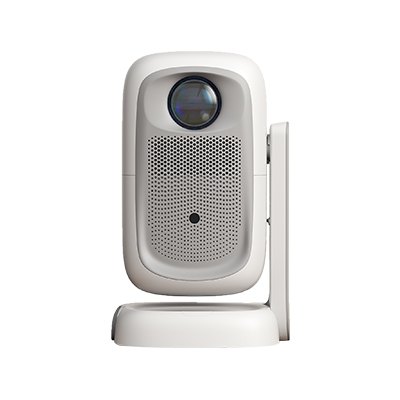
HN30B Portable - HN Series Projector
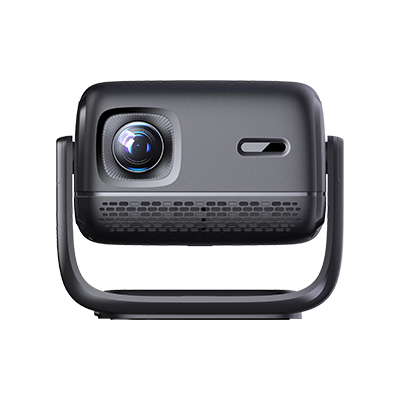
Large-Screen Projector Screens
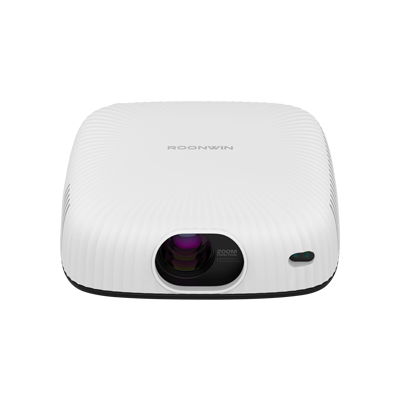
Entry-Level Home Projector












 Reviewed: