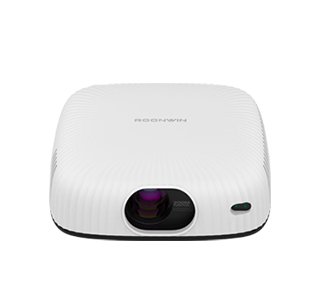
Tablet screen mirroring to a projector is very similar to mobile phone mirroring but offers a larger screen on the tablet for easier navigation during setup, making it ideal for presentations, online classes, and family movie nights. Most tablets, whether iOS (iPad) or Android (Samsung Galaxy Tab, iPad Pro, etc.), support wireless screen mirroring, and the steps are straightforward once both devices are on the same network.
For iPads, swipe down from the top-right corner to access Control Center, tap “Screen Mirroring,” and select your projector. Android tablets typically have a “Cast” or “Smart View” option in the quick settings; tap it to search for and connect to the projector. If wireless mirroring is not available, use a wired adapter: iPads with a Lightning port need a Lightning to HDMI adapter, while newer iPads and Android tablets with USB-C ports can use a USB-C to HDMI adapter. This wired connection is more reliable for long sessions, such as a two-hour presentation or movie.
When mirroring, adjust the tablet’s display settings to “Full Screen” to avoid black bars on the projector. Some tablets allow you to mirror only a specific app instead of the entire screen, which is useful if you want to use other apps without showing them on the projector. Also, ensure the tablet is charged or plugged in, as screen mirroring can drain battery quickly. If the image is blurry, check the projector’s focus and adjust the distance between the projector and the screen.
Read recommendations:
HI Gift Customization - HI Series Projector
MediaTek Projector Distributor
Projector Waterproof Ratings









 Reviewed: