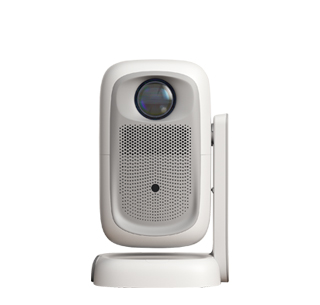
The wireless screen mirroring device is a convenient accessory that can realize wireless connection between mobile phones, computers, tablets and other devices and projectors, eliminating the trouble of wired connection and improving the flexibility of use. With the popularization of wireless technology, more and more users use wireless screen mirroring devices to connect projectors. The usage method of the wireless screen mirroring device is relatively simple, but it is necessary to follow the correct steps to ensure a stable connection and smooth screen mirroring. Below is a detailed introduction to the usage method of the projector wireless screen mirroring device, including device connection, screen mirroring operation, and common problem solutions.
First, the wireless screen mirroring device needs to be connected to the projector. Most wireless screen mirroring devices are connected to the projector through the HDMI interface. First, turn off the power of the projector and the wireless screen mirroring device, insert one end of the HDMI cable into the HDMI interface of the wireless screen mirroring device, and insert the other end into the HDMI interface of the projector. Then, connect the power supply of the wireless screen mirroring device (some devices can be powered through the USB interface of the projector, and some need an external power adapter). After connecting, turn on the projector and the wireless screen mirroring device, and switch the input source of the projector to the HDMI interface connected to the wireless screen mirroring device. At this time, the screen of the wireless screen mirroring device will be displayed on the projection screen, usually showing the device name, Wi-Fi signal and connection method.
Next, connect the mobile phone, computer or tablet to the wireless screen mirroring device. There are two common connection methods: Wi-Fi direct connection and router connection. Wi-Fi direct connection is to connect the device directly to the Wi-Fi signal emitted by the wireless screen mirroring device. Open the Wi-Fi settings of the mobile phone or computer, find the Wi-Fi name of the wireless screen mirroring device (usually printed on the device or in the manual), enter the password (if any), and complete the connection. Router connection is to connect both the wireless screen mirroring device and the mobile phone/computer to the same Wi-Fi router. First, connect the wireless screen mirroring device to the router (through Wi-Fi or network cable), then connect the mobile phone/computer to the same router, and the device can automatically search and connect to the wireless screen mirroring device. Router connection is more stable, suitable for long-term use, while Wi-Fi direct connection is more convenient, suitable for temporary use.
After the connection is completed, you can start the screen mirroring operation. For mobile phones (iOS and Android), the operation methods are slightly different. For iOS devices (iPhone, iPad), slide down from the upper right corner of the screen to open the control center, find the "screen mirroring" option, click it, select the name of the wireless screen mirroring device, and the screen of the mobile phone will be displayed on the projection screen. For Android devices, the operation method varies by brand. Generally, you can open the "settings" of the mobile phone, find the "display" or "wireless screen mirroring" option, turn on the wireless screen mirroring function, select the name of the wireless screen mirroring device, and complete the screen mirroring. For computers (Windows and Mac), for Windows computers, open the "settings", find the "system" option, select "display", then click "connect to a wireless display", select the name of the wireless screen mirroring device, and complete the screen mirroring. For Mac computers, click the "airplay" icon in the upper right corner of the screen, select the name of the wireless screen mirroring device, and complete the screen mirroring.
During the screen mirroring process, if there is a problem such as disconnection or lag, you can try the following solutions: first, check whether the wireless signal is stable, and move the device closer to the wireless screen mirroring device if necessary; second, restart the wireless screen mirroring device and the connected device; third, check whether the wireless screen mirroring device is fully charged or connected to the power supply; fourth, update the firmware of the wireless screen mirroring device to the latest version. In addition, it should be noted that the wireless screen mirroring device has certain requirements for the network speed. If the network speed is too slow, it may cause lag during screen mirroring, so it is recommended to use a stable Wi-Fi network.
Read recommendations:
HN30A Portable - HN Series Projector
Office Small Projector
Projectors with Motorized Screens












 Reviewed: