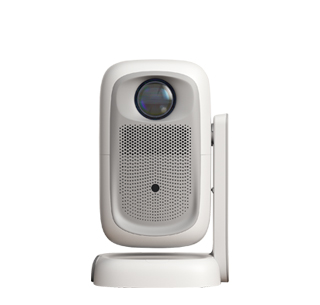
Experiencing issues when trying to project from a laptop to a projector via an HDMI cable can be frustrating, but there are several troubleshooting steps you can take.
1. Check the Cable and Connections
First, ensure that the HDMI cable is properly connected to both the laptop and the projector. Unplug and re - plug the cable at both ends firmly. Sometimes, a loose connection can cause the "no signal" issue. Try using a different HDMI cable. Cables can malfunction over time, and a new cable might solve the problem. If you are using an adapter (e.g., USB - C to HDMI), make sure it is also correctly connected and is in good working condition. Test the adapter with another device if possible.
2. Verify Input Source and Power Status
On the projector, double - check that the correct input source is selected. If you are using an HDMI cable, the input should be set to the corresponding HDMI port (e.g., HDMI 1 or HDMI 2). Also, ensure that both the laptop and the projector are powered on and fully booted. Sometimes, turning both devices off and then on again in the correct order (projector first, then laptop) can resolve connection issues.
3. Update and Reinstall Graphics Drivers
Outdated or corrupted graphics drivers on the laptop can cause problems with external displays. On a Windows laptop, go to the "Device Manager." You can access it by right - clicking on the Start menu and selecting "Device Manager." Expand the "Display adapters" section, right - click on your graphics card, and select "Update driver." Follow the on - screen instructions to update the driver. If the problem persists, you can try uninstalling the graphics driver completely. After uninstalling, restart the laptop, and Windows will automatically reinstall the basic graphics driver. You can then visit the manufacturer's website of your graphics card (e.g., NVIDIA, AMD, or Intel) to download and install the latest official driver.
On a Mac, go to "System Preferences" > "Software Update" to ensure that your Mac has the latest operating system updates, which often include updated graphics drivers.
4. Check BIOS/UEFI Settings (Advanced)
For more technical users, incorrect BIOS/UEFI settings can sometimes interfere with external display connections. Restart your laptop and enter the BIOS/UEFI setup. The key to enter BIOS/UEFI varies depending on the laptop manufacturer (common keys are Del, F2, F10, etc.). Look for settings related to "Display" or "External Display." Make sure that the external display option is enabled. If you are unsure about making changes in the BIOS/UEFI, it is advisable to consult the laptop's user manual or the manufacturer's support website.
Read recommendations:
HW45 Home Cinema - HW Series Projector
HD Projector for Office Use
Projector Projection Ratios












 Reviewed: