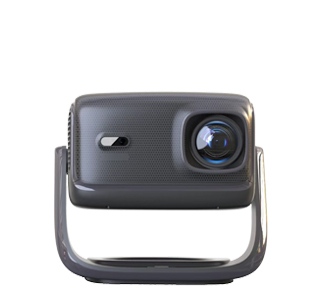
When a projector fails to detect the signal source from a connected computer, it can disrupt your presentation or viewing experience. However, there are several troubleshooting steps you can take to resolve this issue.
1. Check the Physical Connections
First, ensure that all cables are properly connected. Unplug and replug the video and audio cables (if applicable) at both the computer and the projector ends. Make sure the cables are firmly inserted and not loose. If you're using an adapter, check that it's securely connected as well. Try using a different cable or adapter if possible, as a faulty cable or adapter could be the cause of the problem.
2. Verify the Input Source Selection
On the projector, double - check that you've selected the correct input source. Use the remote control or the physical buttons on the projector to cycle through the available input options (e.g., HDMI 1, VGA, etc.) and ensure it matches the port to which the computer is connected. Some projectors may have an "Auto - Source" feature that can automatically detect the connected device. Try enabling this feature if available.
3. Check the Power Status and Boot Sequence
Ensure that both the computer and the projector are powered on and fully booted. Sometimes, turning off both devices, waiting for a few seconds, and then turning them on in the correct order (usually projector first, then computer) can resolve connection issues. If the computer is in sleep mode or has a display - off setting, wake it up and check if the projector can detect the signal.
4. Update Graphics Drivers and Display Settings
Outdated or incorrect graphics drivers on the computer can cause problems with external displays. On a Windows computer, go to the "Device Manager," expand the "Display adapters" section, right - click on your graphics card, and select "Update driver." On a Mac, go to "System Preferences" > "Software Update" to ensure your operating system and graphics drivers are up - to - date. Also, check the display settings on your computer. Make sure the resolution and refresh rate settings are compatible with the projector. You may need to adjust these settings to a lower value to see if the projector can detect the signal.
5. Check for Hardware Issues
If all else fails, there may be a hardware issue with either the computer's video output port, the projector's input port, or other internal components. Try connecting the computer to another display device (such as a TV) to see if the video output is working properly. If the computer works fine with other displays, the problem may lie with the projector. In this case, it may be necessary to contact the projector manufacturer's support or take the projector for professional repair.
Read recommendations:
HW40 Home Cinema - HW Series Projector
MediaTek Projector low price
Portable Laser Projectors with Built-in Battery for Outdoor Use













 Reviewed: