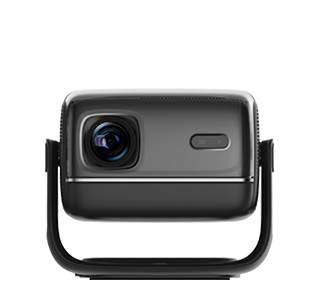
When Nintendo Switch is connected to a projector for game projection, screen delay and frame lag are the core problems that affect the game experience, especially for competitive games such as action games, racing games and fighting games. Excessive delay will lead to inconsistent operation and screen feedback, resulting in operation error and game experience degradation. The low-latency setting of the projector is specially optimized for game scenarios, which can effectively reduce screen transmission delay, improve response speed, and realize smooth and synchronous game operation and screen display, bringing professional game viewing and operating experience.
First, switch the projector's dedicated game low-latency mode, which is the most effective core setting. Most smart projectors are equipped with built-in game mode and low-latency mode, which can reduce the image processing delay by simplifying the picture algorithm and reducing redundant image optimization steps. After connecting the Switch to the projector through HDMI cable, enter the projector's scene mode settings, switch from the default movie mode or standard mode to “game mode” or “low-latency mode”. This mode will turn off unnecessary functions such as dynamic contrast adjustment, noise reduction processing and image sharpening, greatly shortening the signal processing time of the projector, and reducing the overall delay to the lowest level of the equipment.
Second, optimize the connection mode and parameter configuration to further reduce delay. It is recommended to use the original high-spec HDMI cable for wired connection, abandoning wireless projection mode, because wireless transmission is easily affected by network interference and produces large delay. At the same time, set the projector's refresh rate to the highest supported value, priority to 60Hz high refresh rate, which can improve the screen fluency and reduce frame drop and stuttering delay. Turn off the projector's automatic keystone correction, dynamic focus and other real-time adjustment functions during game operation, because these functions will continuously process the picture signal in real time, resulting in additional delay consumption and affecting game synchronization.
Finally, match the Switch host system settings to realize full low-latency adaptation. Enter the Switch system settings, turn on the “TV mode low delay” function, close the screen filtering and image enhancement functions of the host, reduce the host's signal processing time. At the same time, set the output resolution to 1080P fixed resolution, avoid automatic resolution switching causing signal delay fluctuation. After completing all the above settings, the signal transmission and picture processing delay of the whole link will be minimized. The game operation of the handle can be synchronized with the projector screen in real time, without lag and delay, perfectly adapting to all types of Switch games and bringing immersive smooth game experience.
Read recommendations:
HN30A Portable - HN Series Projector
High Lumen Projector
Projector Recommendations for Home Theater













 Reviewed: