Screen stuttering, frame dropping, and image freezing are the most common problems in projector wireless casting, and the core culprit behind most failures is the long-term use of traditional 2.4G WiFi networks. The 2.4G WiFi band has narrow bandwidth, serious signal interference, and limited transmission rate, which can only meet basic low-definition image transmission requirements. When playing 1080P high-definition videos, live streams, and dynamic game screens, the insufficient transmission bandwidth will cause real-time data packet loss, resulting in obvious stuttering and blurred frames. In contrast, the 5G WiFi band features ultra-wide bandwidth, ultra-fast transmission speed, and strong anti-interference ability, which is specially designed for high-definition video and large-file data transmission, perfectly solving casting stuttering problems.
The correct switching and connection method is the key to exerting 5G WiFi’s performance. First, confirm that the user’s router and projector both support 5G dual-band WiFi function, which is a basic prerequisite for smooth switching. Enter the projector’s network settings interface, disconnect the currently connected 2.4G WiFi network, and search for the 5G WiFi signal of the router. The 5G WiFi signal name is usually marked with “5G” suffix for easy identification. After successful connection, the network delay of the projector will be significantly reduced, and the transmission rate will be increased by 3 to 5 times compared with 2.4G. It is worth noting that some dual-band routers combine 2.4G and 5G signals into one, so users need to manually separate the two bands in the router background to avoid the projector automatically connecting to the low-speed 2.4G band.
To further optimize the 5G WiFi casting effect, users need to master practical network optimization skills. Place the router in an open position close to the projector, avoid wall occlusion and electronic device signal interference, to ensure stable 5G signal reception. Do not connect too many devices to the 5G WiFi network during casting, as excessive device connections will occupy bandwidth resources and cause insufficient transmission speed for projector casting. In addition, update the projector’s system firmware regularly, as the official new version will optimize the 5G WiFi signal receiving algorithm and reduce network delay. After switching to 5G WiFi and optimizing the network environment, the projector’s wireless casting will achieve zero stuttering, zero frame dropping, and synchronous audio and video, completely meeting the needs of high-definition video playback and real-time screen projection.
Read recommendations:
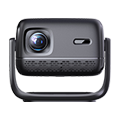
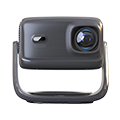
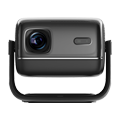
HN30B Portable - HN Series Projector
Teaching-Specific Projector
Rental of Projector Screens











 Reviewed: